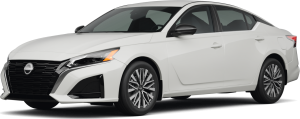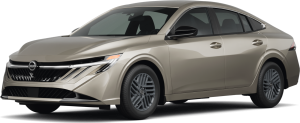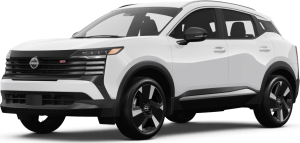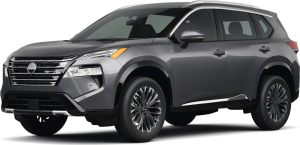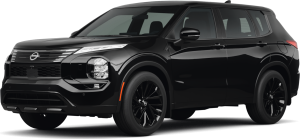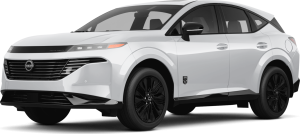



Navigating Poway’s scenic streets is even better when your phone is seamlessly connected to your Nissan. Whether you’re driving a sleek Sentra, versatile Versa, or dynamic Altima, connecting your phone’s Bluetooth opens up a world of hands-free convenience—perfect for calls, music, and navigation. Not sure where to start? Don’t worry, we’ve got you covered! In this guide, we’ll walk you through everything you need to know about pairing your iPhone or Android to your Nissan car. And if you need expert help, the team at Mossy Nissan Poway is just a visit or call away to ensure you’re always connected while on the go.
Getting Started with Bluetooth in Your Nissan
Bluetooth makes driving safer and more enjoyable. It allows you to stay connected while keeping your hands on the wheel. Pairing your phone with your Nissan is quick and easy. Whether you need to connect iPhone Bluetooth in a Nissan or pair an Android device, the process is straightforward.
First, check if your Nissan supports Bluetooth. Models like the Sentra, Versa, and Altima come equipped with Bluetooth as a standard feature. To ensure a smooth connection, make sure your phone’s Bluetooth is turned on. You’ll find this option in the settings menu on your phone.
Your Nissan also needs to be ready for pairing. Start your car and put it in park. This ensures safety and makes pairing easier. Once your phone’s Bluetooth is on, your Nissan will appear as an available device in your phone’s list. Select your vehicle, and follow the prompts on your phone and car’s display.
Pairing your phone gives you hands-free access to calls, music, and navigation. With just a few steps, your phone and Nissan will be in sync. If you need help, Mossy Nissan Poway is here to guide you. Whether it’s a Sentra or an Altima, we’ll make sure you’re set up and ready to go!
Preparing Your Phone and Vehicle for Pairing
Before connecting your phone, a few quick steps can help everything go smoothly. Whether you need to connect iPhone Bluetooth in a Nissan or pair an Android, the basics are the same.
Start with your phone. Open the settings menu and locate the Bluetooth option. Turn it on so your phone is ready to pair. If you’re using an iPhone, make sure it’s updated to the latest iOS version. For Android users, check that your device is running the latest software. This can prevent pairing problems.
Next, get your Nissan ready. Turn on the car, and make sure it’s in park. This step ensures safety and helps the system work correctly. The Sentra, Versa, and Altima all have built-in Bluetooth, so you’re good to go.
Look at your car’s display screen. Find the “Settings” or “Bluetooth” menu. Some models may have a button labeled “Phone” or “Connect.” Once you’re there, your Nissan will be ready to pair with your phone.
These simple steps make it easy to connect your phone. Whether you’re driving through Poway in a Sentra or an Altima, Bluetooth setup is quick and hassle-free. If you run into any trouble, the team at Mossy Nissan Poway can help!
Step-by-Step Guide to Connect Your iPhone Bluetooth in a Nissan
Connecting your iPhone Bluetooth in a Nissan is simple and fast. Follow these steps to pair your device:
1. Start Your Nissan
Turn on your vehicle, like the Sentra, Versa, or Altima. Make sure the car is in park.
2. Enable Bluetooth on Your iPhone
Open your iPhone’s “Settings” app. Tap on “Bluetooth” and toggle it on. Your iPhone will start searching for devices.
3. Access Bluetooth Settings in Your Nissan
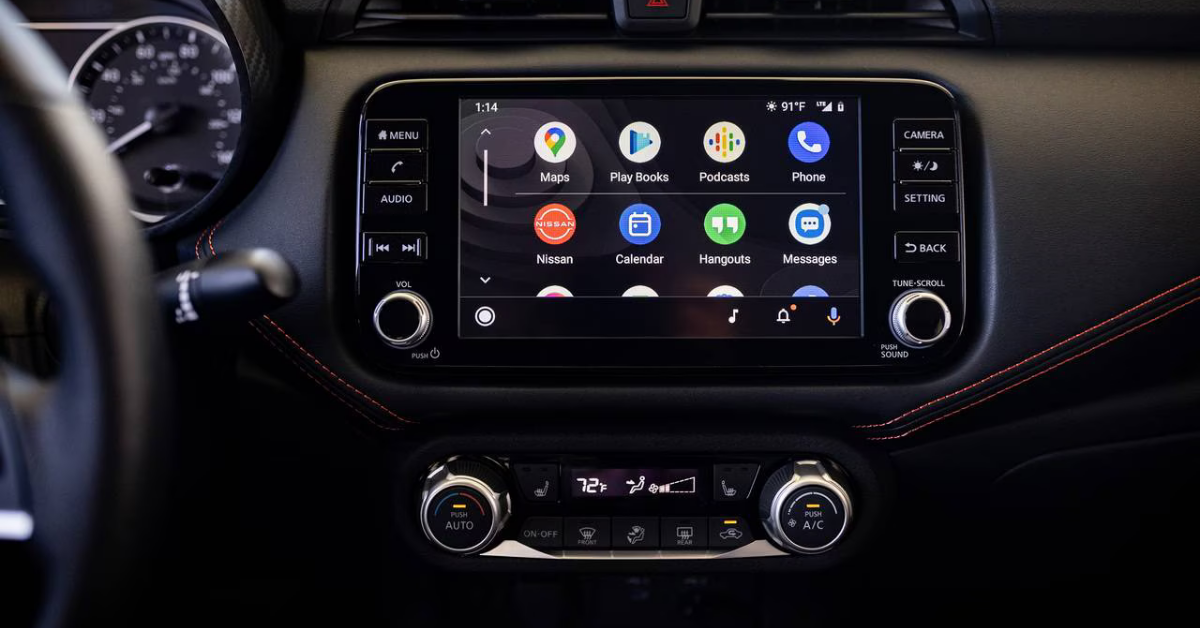
On your Nissan’s touchscreen, press the “Phone” or “Settings” button. Select “Connect New Device” or “Bluetooth Setup.”
4. Select Your Nissan on Your iPhone
Look for your Nissan’s name under the list of available devices on your iPhone. Tap it to connect.
5. Confirm the Pairing Code
A code will appear on your iPhone and car display. Make sure they match, then press “Pair” on your phone.
6. Finish the Setup
Follow any additional prompts on your car’s display. Your iPhone is now connected and ready to use.
This process works for all iPhone models. Now, you can make calls, play music, or navigate Poway hands-free. If you run into issues, visit Mossy Nissan Poway for assistance. We’re happy to help with your Sentra, Versa, or Altima!
Step-by-Step Guide to Connect Android Bluetooth in Your Nissan
Connecting Android Bluetooth in your Nissan is easy with just a few steps. Follow this guide to pair your device:
1. Turn on Your Car
Start your Nissan, such as the Altima, Sentra, or Versa. Make sure the car is in park for safety.
2. Enable Bluetooth on Your Android
Open the “Settings” app on your Android device. Tap “Connections” or “Bluetooth,” depending on your phone model. Turn Bluetooth on.
3. Access Bluetooth Settings in Your Nissan
On your Nissan’s touchscreen, press the “Phone” or “Settings” button. Choose “Connect New Device” or “Bluetooth Setup.”
4. Search for Your Nissan on Your Android
Your Android will display a list of nearby devices. Look for your Nissan’s name and tap to select it.
5. Pair Your Devices
A pairing code will appear on both your phone and your car’s screen. Confirm the code matches, then tap “Pair” on your phone.
6. Complete the Connection
Follow any additional prompts on your Nissan’s display. Once paired, your Android is ready to make calls and play music.
If you encounter issues, check for updates on your Android. Restart your phone or car if needed. You are welcome to ask our team by calling Mossy Nissan Poway, we are always available to help if your Altima, Versa, or Sentra needs extra assistance.
Exploring NissanConnect and Enhanced Features
NissanConnect takes Bluetooth to the next level. It connects your Nissan vehicle with your smartphone for a smarter, safer driving experience. Whether you want to connect iPhone Bluetooth in a Nissan or pair an Android, NissanConnect makes it simple.
One of its best features is streaming music. You can listen to your favorite playlists, podcasts, or radio apps. Songs are just a tap away, making your drives through Poway more enjoyable.
NissanConnect also supports hands-free calls. Once your phone is paired, you can make or take calls without touching your device. Your Nissan’s built-in microphone ensures clear audio.
Another great feature is navigation tools. NissanConnect works with your phone to provide turn-by-turn directions. This helps you find the fastest routes, whether you’re exploring Poway or heading out of town.
Vehicles like the Sentra, Altima, and Versa are designed to integrate seamlessly with NissanConnect. The system enhances your experience by reducing distractions and keeping your focus on the road.
Driving through Poway with NissanConnect means more convenience, safety, and fun. If you need help setting it up or pairing your iPhone or Android, call or visit Mossy Nissan Poway. We’ll make sure your Sentra, Altima, or Versa is ready to go!
Troubleshooting Bluetooth Connectivity in Your Nissan
Bluetooth issues can happen, but most problems are easy to fix. Whether you’re trying to connect iPhone Bluetooth in a Nissan or pair an Android, here’s how to solve common issues:
Devices Not Pairing
If your phone isn’t pairing with your Nissan, check that Bluetooth is on for both your phone and car. Restart your phone and your car’s system. For iPhone users, forget the device under “Bluetooth” settings, then try pairing again. On Android, clear your Bluetooth cache and reconnect.
Poor Audio Quality
If calls or music sound distorted, check your phone’s signal. Weak signals can affect Bluetooth performance. Ensure no other devices are interfering with the connection.
Devices Disconnecting Unexpectedly
If your phone keeps disconnecting, restart both devices. Make sure your car is parked and the Bluetooth signal is active.
Resetting Bluetooth Settings
Sometimes, resetting can help. In your Nissan, go to the “Settings” menu and choose “Remove Devices.” On your phone, forget the car and reconnect.
Still having trouble? Mossy Nissan Poway can help. Bring in your Sentra, Versa, or Altima, and our team will fix any connectivity issues. Bluetooth is essential, and we’re here to keep you connected.
Bluetooth Safety Tips for Driving Around Poway
Using Bluetooth while driving in Poway makes it easier to stay connected and safe. However, it’s important to use it responsibly.
Follow Legal Guidelines
California law requires hands-free devices when making calls. Connecting iPhone Bluetooth in a Nissan vehicle or pairing an Android ensures you comply with these rules. Avoid holding your phone while driving to reduce distractions.
Minimize Distractions
Bluetooth is a great tool, but don’t let it take your focus off the road. Set up your playlist or GPS before you start driving. If you need to make a call, use voice commands. Vehicles like the Altima, Versa, and Sentra have built-in features that make hands-free use simple.
Drive Safely in Poway’s Busy Streets
Poway neighborhoods can get busy, especially during peak hours. Use Bluetooth to access navigation tools without fumbling with your phone. This helps you stay aware of cyclists, pedestrians, and traffic.
Bluetooth lets you make calls, stream music, and access maps safely. By following these tips, you can enjoy the convenience without putting yourself or others at risk. Need help setting up your Bluetooth? Drop by at Mossy Nissan Poway, and we’ll make sure you’re driving safer in your Sentra, Versa, or Altima.
Maximize Your Driving Experience in Poway with Bluetooth
Bluetooth technology adds convenience and enjoyment to every drive. Whether you connect iPhone Bluetooth in a Nissan or pair an Android, the benefits are endless.
Enjoy Your Favorite Music
Stream your favorite songs or podcasts without touching your phone. Any Nissan vehicles let you control music using buttons on the steering wheel or the touchscreen. No more fumbling with your device while driving around Poway.
Hands-Free Calls
Bluetooth makes calls easy and safe. You can answer or dial numbers with simple voice commands. This keeps your hands on the wheel and your eyes on Poway’s roads.
Seamless Navigation
Pairing your phone with your Nissan gives you access to GPS directions. The audio prompts guide you through busy streets or unfamiliar routes. Whether you're running errands or exploring Poway, Bluetooth makes it stress-free.
Stay Connected While Focused
Answering calls, playing music, or following a map has never been easier. The hands-free system keeps distractions to a minimum while letting you stay connected.
Ready to elevate your driving experience? Mossy Nissan Poway can help you set up Bluetooth in your Nissan vehicle including Sentra, Altima, or Versa. Visit us today for expert assistance!
Frequently Asked Questions About Connecting Your Nissan's Bluetooth to Your Phone
1. How do I pair my phone via Bluetooth for the first time?
To pair your phone via Bluetooth for the first time, turn on Bluetooth in your phone’s settings, then access the Bluetooth settings on your Nissan’s touchscreen. Select “Connect New Device” or “Bluetooth Setup,” find your car on your phone’s device list, and confirm the pairing code on both screens.
2. Can multiple phones be connected to the system at once?
No, Nissan's Bluetooth system allows only one phone to be actively connected at a time. However, you can pair multiple phones to the system and switch between them manually when needed.
3. Does the connection automatically re-establish when I start the car?
Yes, if your phone has been paired before and Bluetooth is enabled, the connection will re-establish automatically when you start your car.
Visit Mossy Nissan Poway for Expert Help and Your Next Vehicle
Now that you know how to connect your phone’s Bluetooth in your Nissan, take your driving experience to the next level. Whether you’re pairing an iPhone or Android, we’re here to help you stay connected and enjoy every drive. Mossy Nissan Poway proudly serves drivers in Poway and the surrounding areas, and we’d love to assist you.
Looking for your next car? Explore our wide selection of Nissan vehicles, including the Sentra, Versa, and Altima. Each model comes packed with advanced features like Bluetooth compatibility, making them ideal for your daily commutes or family outings.
Before you decide, don’t forget to check out 10 key things to look for during a Test Drive to make sure you pick the perfect Nissan. Want to learn more about features like sport mode? Read our guide on what does Sport Mode mean in a Nissan vehicle. If you’re shopping for your family, discover which Nissan Vehicles are Best for Families? to see which models offer the space and safety you need.
Visit Mossy Nissan Poway today or contact us for expert assistance. We’re here to answer all your questions and help you find the perfect vehicle to drive through Poway and beyond.